
make marketing affordable now!


|
|---|
 Email Setup:
 Email: |
me@my-domain.co.za |
| Incoming (POP) server : | mail.my-domain.co.za |
| Outgoing (SMTP) server : | smtp.my-domain.co.za |
| Account / User Name : | me@my-domain.co.za |
| SMTP Authentication : | Enabled (same Username as POP) |
| Note: If SMTP Authentication is not catered for by your email program, you must rather use your ISP's SMTP server. | |
| SMTP Port : | 587 |
Launch Outlook 2002/2003
1. Launch Outlook 2002/2003
2. Select Tools from the top menu bar and then E-mail Accounts
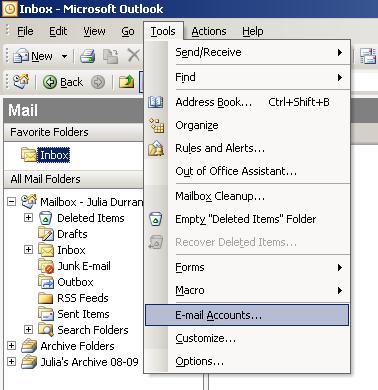
Add a new email account
3. On the pop-up screen, select Add a new email account then click Next
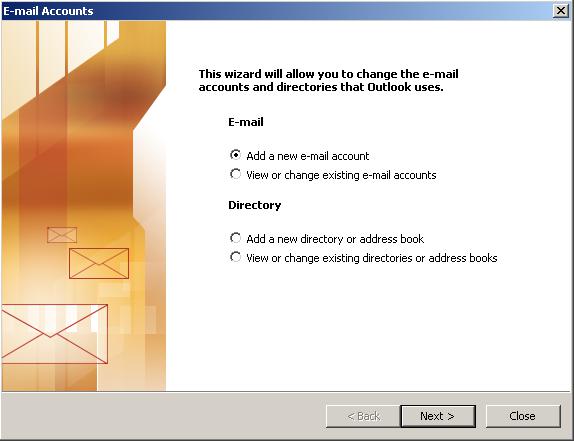
Select Server Type
4. Under Server Type, select POP3 and then click Next
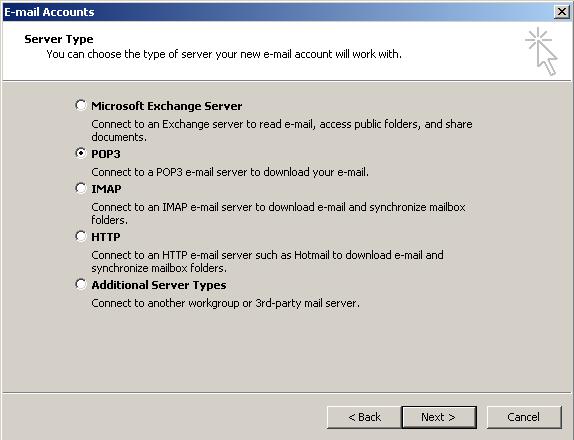
Confirm Email Settings
5. Enter the relevant details under User, Server and Logon Information. Check that your username is your full email address and, under Server Information, make sure to use the prefix “pop” and “smtp” as appropriate.
6. Once complete, click More Settings
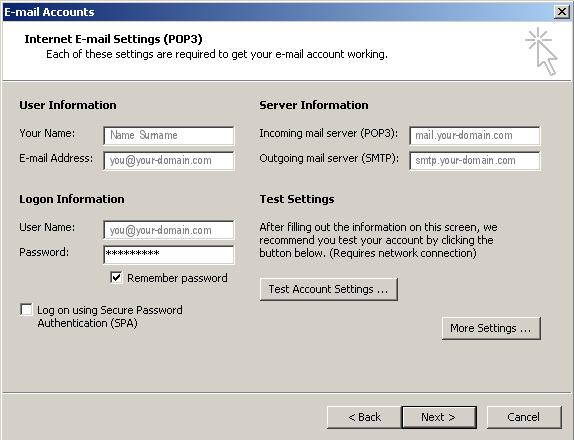
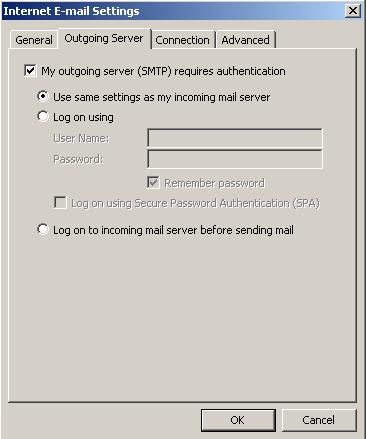
Outgoing Server Settings
7. On the pop-up, select the Outgoing Server tab
8. Ensure that the My outgoing server (SMTP) requires authentication checkbox is selected, as well as Use same setting as my incoming mail server
Advanced Settings
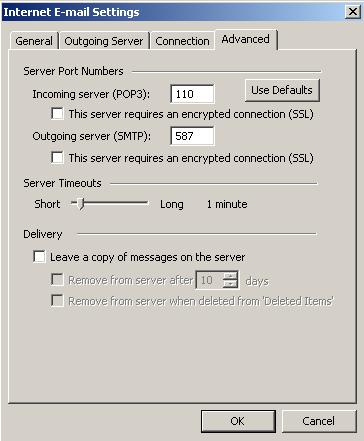
9. Select the Advanced tab
10. The Incoming Server (POP) port should be set to 110
11. Set the Outgoing Server (SMTP) port to 587
12. Click OK, then Next and Finish
13. Click Test Account Settings to check if your details are correct
14. Your Outlook mail program should now be set up to send and receive mail
Test Account Settings
15. Click Test Account Settings to check if your details are correct
16. Click Close, then Next and Finish
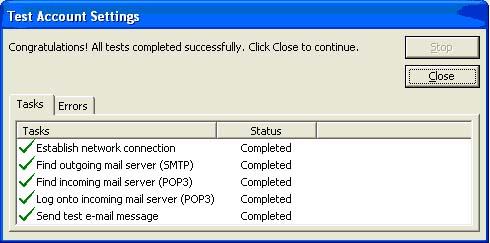
17. Your Outlook mail program should now be set up to send and receive mail
Email still not working? Read our Troubleshooting Guide