
make marketing affordable now!


 Text Colour Text Colour
CKEditor allows you to change the color of text in your documents by using a color palette. To choose a color, select a text fragment and press the Text Color toolbar button. The Text Color drop-down menu that will open lets you select a color from a basic palette of 40 shades. 
Text Color drop-down menu in CKEditor
If the color that you are after is not included in the basic palette, click the More Colors option in the drop-down menu. The Select color dialog window that will open lets you choose a color from an extended palette. You can either select a desired shade with your mouse or enter the RGB color value into the text box, using one of the following formats:
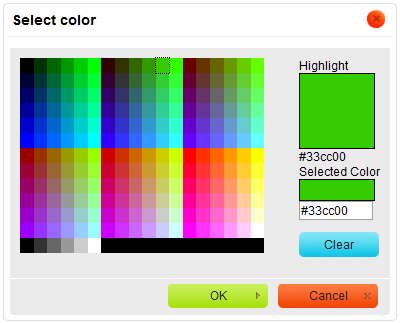
Select Color dialog window in CKEditor
A color can be applied to the whole document, a paragraph, or a text fragment of arbitrary length — even a single letter. Do note, however, that for aesthetic and readability reasons it is recommended not to combine too many different colors in one document. 
Text color used in CKEditor
|
|---|